
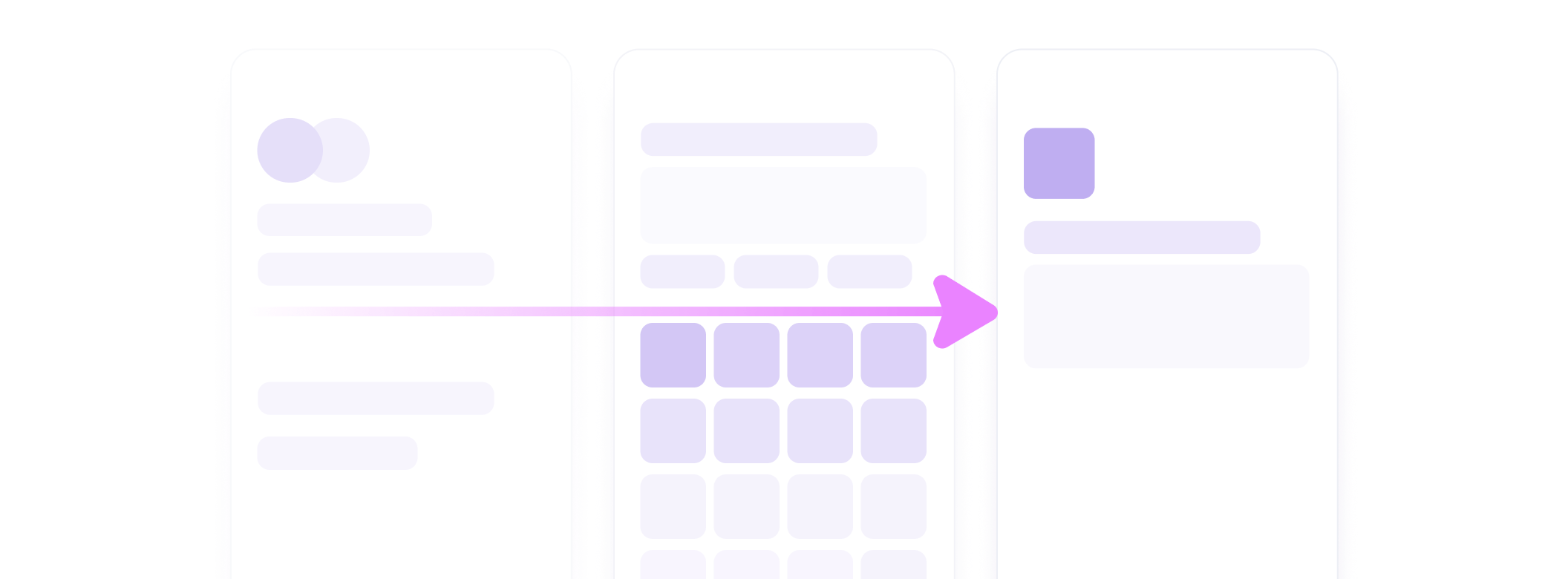
Deeplink to Login Page
By combining our Company Search endpoint with Transact's deeplink parameter, you can start a user directly at the login step. A "Company" in this context can represent either a direct payroll provider or an employer entry from our system mapping.
Step 1: Search for a Company
To find the appropriate company _id for login, use the Company Search endpoint:
async function searchForCompany(query) {
  try {
    const response = await fetch('https://api.atomicfi.com/company/search', {
      method: 'POST',
      headers: {
        'x-api-key': '<YOUR_API_KEY>',
        'x-api-secret': '<YOUR_API_SECRET>',
        'Content-Type': 'application/json'
      },
      body: JSON.stringify({
        query: query,
        product: 'deposit'
      })
    });

    if (!response.ok) {
      throw new Error(`API error: ${response.status} ${response.statusText}`);
    }

    const data = await response.json();
    return data.data;
  } catch (error) {
    console.error('Failed to search for companies:', error);
    throw error;
  }
}
This POST /company/search request performs a fuzzy match on company names using the required query property, and can be narrowed with scopes, product, products, tags, and excludedTags. The response contains a data array of Company objects ordered by relevance, each with an _id, name, status, branding, tags, and a slim connector object.
{
  "data": [
    {
      "_id": "5d38f1e8512bbf71fb776015",
      "name": "DoorDash",
      "status": "operational",
      "connector": {
        "_id": "5d38f182512bbf0c06776013",
        "availableProducts": ["deposit"],
        "capabilities": {
          "distributionTypes": ["total"]
        }
      },
      "branding": {
        "logo": {
          "url": "https://cdn-public.atomicfi.com/logos/doordash.png",
          "backgroundColor": "#F2F2F2"
        },
        "color": "#9460FE"
      },
      "tags": ["gig-economy"]
    }
  ]
}
Pass the _id of the result you want as deeplink.companyId in the next step. If multiple results have similar relevance, present them in a selection screen the way Transact does natively.
If a company's status is under-maintenance, users will be unable to initiate an authentication flow until that company returns to operational.
For the full request and response schema, see the Company Search reference. For deeper guidance — handling franchise networks, manual-deposit companies, and connector capabilities — see the Company Search guide.
Step 2: Deeplink into Atomic
Once you have the company's _id, you can deeplink straight to its login step. Here's how to set up the deeplink object:
The step parameter selects the screen Transact opens on. To start a user at a specific company's login, use 'login-company', which requires companyId. Other supported steps include 'search-company', 'search-payroll', 'welcome', 'account', 'direct-deposit-setup', 'manual-fallback', 'generate-deposit-pdf', and 'add-card'.
import { Atomic } from '@atomicfi/transact-javascript';

Atomic.transact({
  config: {
    publicToken: '<YOUR_PUBLIC_TOKEN>',
    scope: 'user-link',
    tasks: [{ operation: 'deposit' }],
    deeplink: {
      step: 'login-company',
      companyId: selectedCompanyId
    }
  },
  onInteraction: interaction => {
    console.log('Interaction event:', interaction.name, interaction.value);
  },
  onFinish: data => {
    console.log('Finish event:', data.taskId, data.handoff);
  },
  onClose: data => {
    console.log('Close event:', data.reason);
  }
});
In this snippet, we pass deeplink with step: 'login-company' and the companyId retrieved from the search endpoint.
Use theme.navigationOptions to control the navigation chrome shown around the deeplinked login. Set showBackButton to true to expose a back button that lets the user return to the company search screen, or to false to lock the user to the deeplinked company.
import { Atomic } from '@atomicfi/transact-javascript';

Atomic.transact({
  config: {
    publicToken: '<YOUR_PUBLIC_TOKEN>',
    scope: 'user-link',
    tasks: [{ operation: 'deposit' }],
    deeplink: {
      step: 'login-company',
      companyId: selectedCompanyId
    },
    theme: {
      navigationOptions: {
        showBackButton: true,
        showBackButtonText: false,
        showCloseButton: true
      }
    }
  },
  onInteraction: interaction => {
    console.log('Interaction event:', interaction.name, interaction.value);
  },
  onFinish: data => {
    console.log('Finish event:', data.taskId, data.handoff);
  },
  onClose: data => {
    console.log('Close event:', data.reason);
  }
});
Additional Tips
- Environments: Use the appropriate environment (
sandboxvs.production) when making API calls and initializing the Transact SDK. - Error Handling: Validate the
_idis not empty and handle any errors thrown by the Transact SDK or your HTTP requests. - Testing: Thoroughly test your integration in
sandboxbefore going live.
Troubleshooting
- "Invalid company ID" – Ensure the
_idfrom the search response is correct and passed todeeplink.companyId. - Unauthorized – Verify your
x-api-keyandx-api-secretheaders (orx-public-tokenif you are authenticating with a public token). Confirm thepublicTokenpassed when initializing the Transact SDK matches the one issued for this user.