
Search Experiences
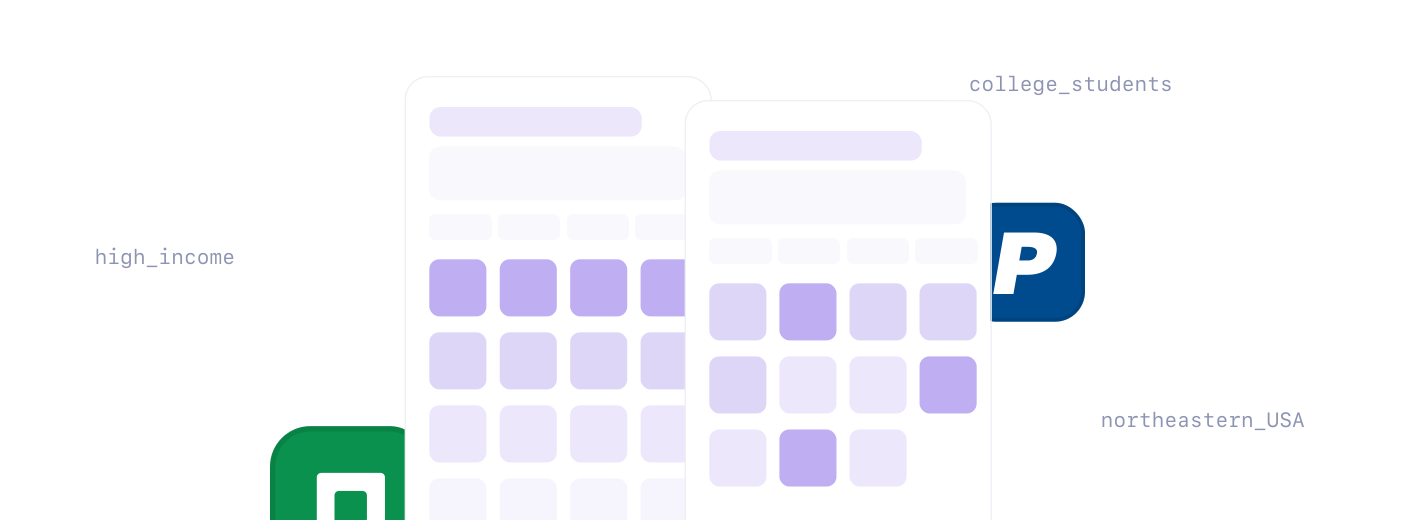
Search Experiences allow you to customize the tiles on the popular tab within search. By creating a Search Experience, you can tailor the options to unique audinces for a tailored experience.
This guide will walk you through setting up a Search Experience in Console and implementing it in your Transact SDK.
Creating a Search Experience
- Within Console, go to the settings page and click the features tab
- Scroll down to the Search Experiences section
- Create a new Search Experience
- Select the product type you want to customize
- Add your list of employers and payroll systems
Note: Changes are currently made in real-time. So if you are editing a live search experience keep in mind users will see any change immediately when they load Transact.
Hiding Merchants, Employers, or Payroll Providers
Search experiences can also be used to hide certain merchants, employers, or payroll providers from your search. If you only exclude systems the search grid will remain the same but the excluded systems will not be shown in the search grid or search results.
Implementing Your Search Experience
After creating your Search Experience in Console, you'll need to update your Transact configuration to use it:
- Copy the Search Experience ID from Console
- Add it to your Transact configuration using the search parameter: Search Experience SDK Configuration
{ "search": { "ruleId": "6747956841e15c2e70e0063f" } } - This configuration is required across each SDK implementation